Route Planning Software with CSV & Excel Import
Import stops from CSV or Excel and turn them into optimized, scheduled routes in seconds — with time windows and per-stop ETAs.

Apps & Technology
Excel is fantastic at one thing: keeping your stops, notes, and addresses in one place without drama. The drama starts when you try to turn that list into an efficient route.
A spreadsheet can sort rows. It cannot “see” geography. It will happily give you a route that zig-zags across town because two streets share the same postal code. So the practical workflow looks like this:
Below is a simple Excel template that plays nicely with Optiway, plus the mistakes that break imports and waste time.
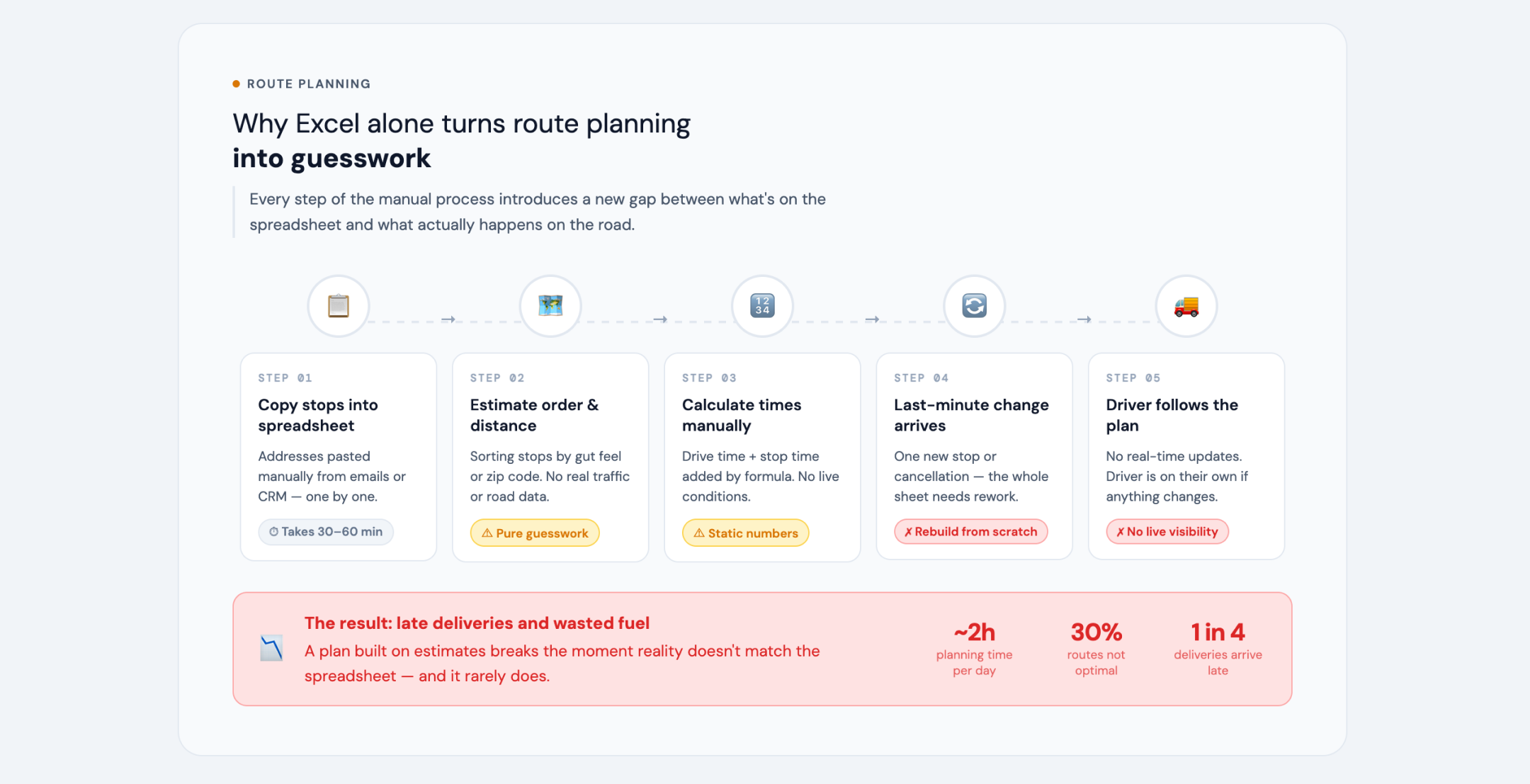
Most “Excel routing” ends up being one of these:
Excel is doing its job (organizing). It just was never built to calculate the best sequence of stops based on road networks and travel times. A route planner is built for that.
Optiway’s spreadsheet import is intentionally strict: it expects addresses only, one address per line, with no numbering and no column names.
That’s why the cleanest Excel setup is a two-tab workbook:
Keep everything you care about here.
Suggested columns:
This sheet is for you. You can format it, filter it, color it, add comments — go wild.
This sheet is boring on purpose.
Rules:
Example (Column A, starting at row 1):
| 20 W 34th St, New York, NY 10118 |
| 405 Howard St, San Francisco, CA 94105 |
| 1 Apple Park Way, Cupertino, CA 95014 |
Tip: Build the Import sheet with a formula that pulls addresses from MASTER (so you never retype). Then copy and paste values when you’re ready.
.xlsx (or export a .txt if you prefer a plain list).In the app:
.txt / .xlsx / .xls.If any addresses can’t be found, Optiway shows a warning and skips them — which is a gift, not a failure. It’s telling you exactly where your spreadsheet needs cleanup.
When creating a route, you can set a start address (or use your current location). You can also set a different end location, or keep it as a round trip back to the start.
Once stops are loaded:
Note: optimizing longer routes requires a Route Planner subscription — see pricing.
Two useful knobs (optional, not required for basic routing):
And if you simply want to override the order yourself, you can reorder stops by editing the route and dragging them into place, then either re-optimize or keep the manual order in Optiway’s delivery driver navigation app with multi-stop routes.
If your Excel file is also your “day sheet” (printouts, notes, checklists), here’s the simplest approach:
Route Order in your MASTER sheetRoute OrderThis keeps Excel as the record, while Optiway does the heavy lifting of sequencing.
Symptom: the first “address” is literally the word “Address”,
and it gets skipped.
Fix: no column names on the import list.
Symptom: “1) 20 W 34th St…” fails or imports inconsistently.
Fix: remove numbering — one address per line, plain text.
Symptom: partial addresses, missing city, weird matches.
Fix: put the full address in a single cell per row for import.
Symptom: the map lands you at the building, then the day stalls at the buzzer.
Fix: include unit details in the address line whenever possible.
Symptom: skipped entries or wrong locations.
Fix: replace descriptions with a valid postal address (or a place name that consistently resolves).
Symptom: perfectly fine addresses that resolve to the wrong continent.
Fix: standardize format — include city + region + postal code where applicable.
Symptom: one stop vanishes during import with a warning.
Fix: take the warning seriously — correct the exact row positions Optiway flags.
Symptom: you visit the same place twice and blame the route.
Fix: in MASTER, use Remove Duplicates (or a quick COUNTIF check) before you export the IMPORT list.
Symptom: a route that looks tidy in Excel and messy on the road.
Fix: sorting is fine for grouping, not sequencing. Use it to sanity-check clusters, then optimize the actual order.
If you want a process that doesn’t collapse the moment someone calls and changes an address:
That’s the difference between “route planning” and “route guessing”.
Route Planning Software with CSV & Excel Import
Import stops from CSV or Excel and turn them into optimized, scheduled routes in seconds — with time windows and per-stop ETAs.

Delivery Route Planning Best Practices - A Practical Daily Checklist by Optiway
Optiway puts your stops in a clean driving order — fewer loops, less fuel, calmer deliveries, and quick edits when plans change.
Delivery Route Planner With Excel Import
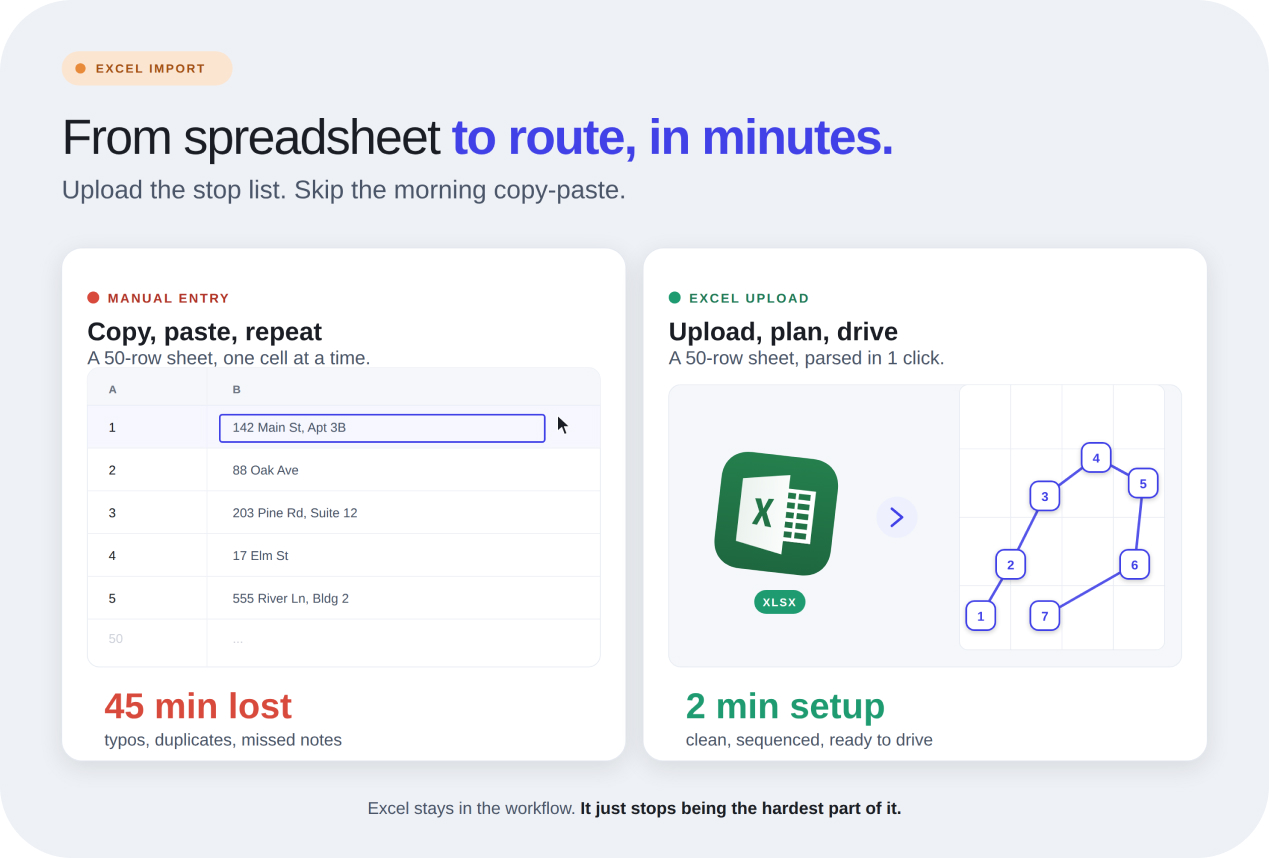
Hours disappear when addresses are copied by hand. Optiway helps local delivery businesses upload Excel stop lists, build cleaner routes, and get moving fast.
Why Google Maps Falls Short for Truck Routes
Where a navigation app stops being enough for commercial multi-stop routing.
Plan, assign and track every driver — live, from one dashboard.