Route Planning Software with CSV & Excel Import
Import stops from CSV or Excel and turn them into optimized, scheduled routes in seconds — with time windows and per-stop ETAs.

Route Planning
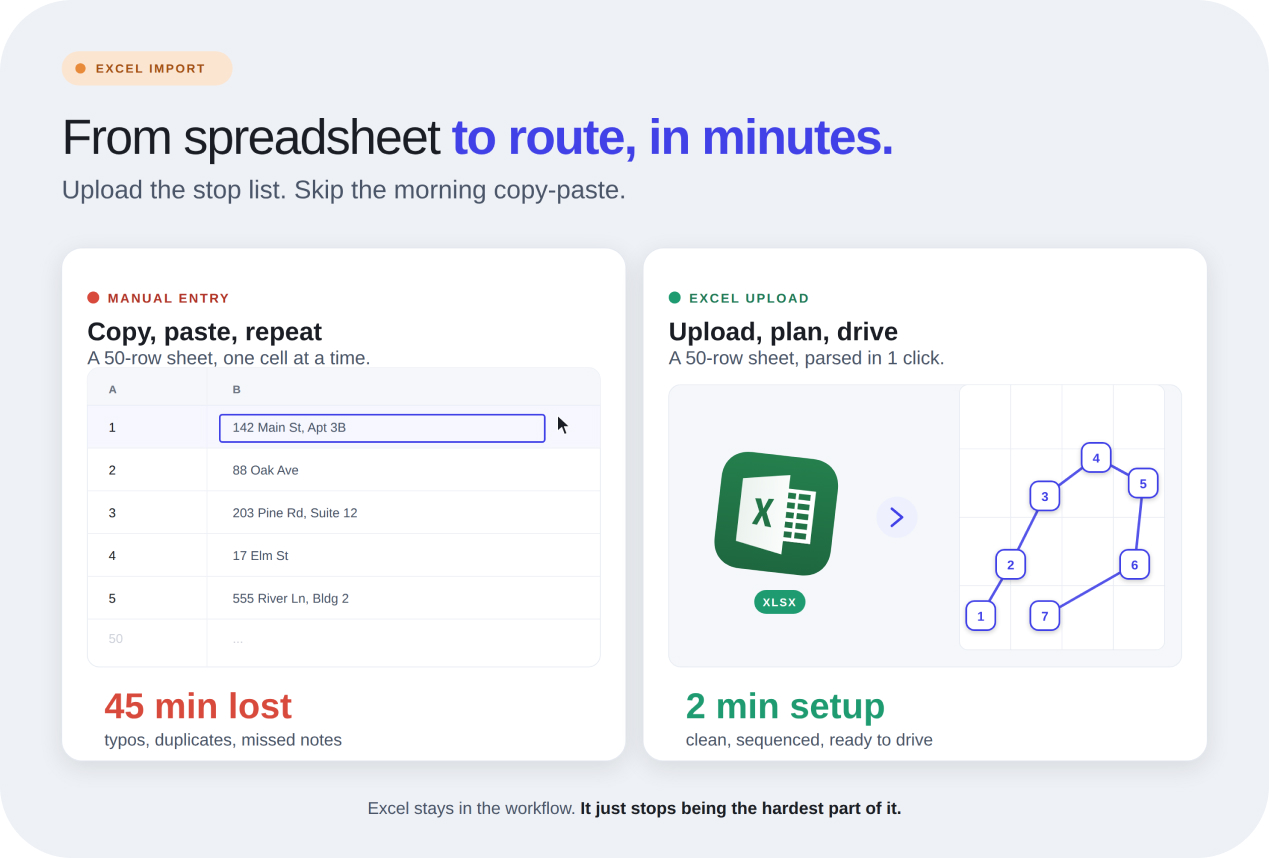
Most local delivery teams are already using spreadsheets in some form. Grocery deliveries, pharmacy drop-offs, florists, bakeries, and same-day couriers often begin with a daily Excel file.
The challenge starts after the spreadsheet is ready. Drivers still need to turn that file into a route. That usually means manually entering addresses into a map app, checking the stop order, and estimating how long the route will take.
A delivery route planner with Excel import solves that gap between having the addresses and having a usable route. Instead of rebuilding the route manually, drivers can use spreadsheet upload to move directly from the stop list to route planning.
Manual planning creates friction in small ways that add up quickly. Copy-pasting addresses sounds simple until 30, 50, or 80 stops are waiting to be entered.
One typo can send a driver to the wrong location. Duplicate entries create wasted miles. Incomplete addresses cause delays at the worst possible moment.
Formatting is another issue. Some spreadsheets contain full addresses, others are split across columns, and some include notes that get lost during manual entry.
Then the route changes. A customer updates their address, a stop gets canceled, or a same-day order gets added. Suddenly, the route needs to be rebuilt, and the morning gets longer.
A route planner with spreadsheet import removes much of this friction by handling the full XLSX address list in one place.
Morning planning should be quick enough that it does not become the hardest part of the shift. With Excel import, drivers can upload the full stop list directly into the route planner instead of typing addresses one by one. The app reads the stops, organizes them, and helps build a cleaner route in minutes.
For same-day businesses, this matters even more. If routes are delayed in the morning, every stop after that feels rushed. A good XLSX route planner app supports fast, bulk stop import, helping local delivery businesses move from spreadsheets to the road much faster.
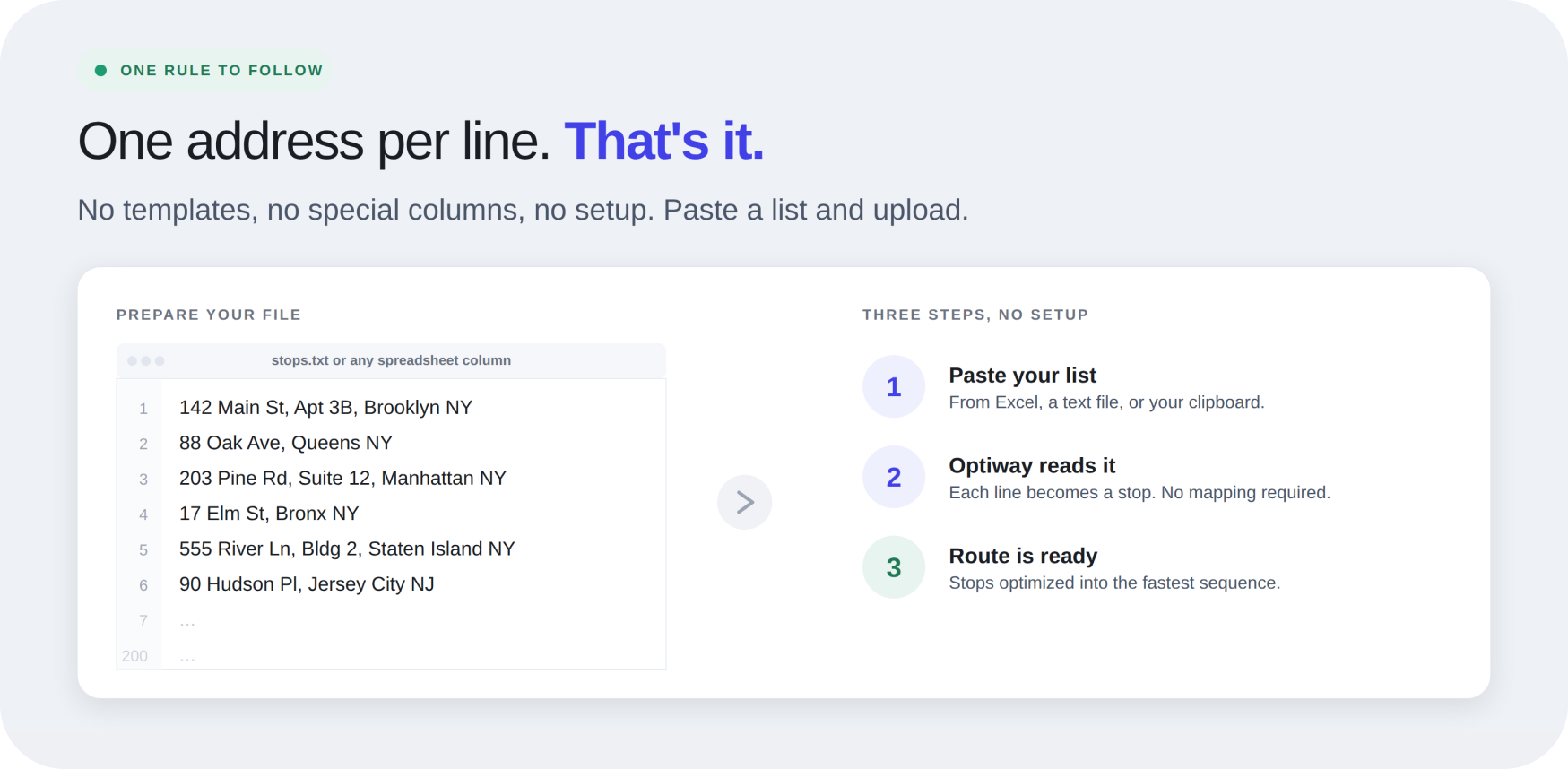
A cleaner spreadsheet creates a better route. Before uploading, it helps to make sure the stop list includes the details drivers actually need on the road.
The most useful fields usually include:
This helps a same day delivery route planner Excel workflow stay clean and supports better stop-by-stop ETAs once the route is built. Good route planning starts with good input.
Sometimes, the route feels difficult because the spreadsheet created problems before the route even started.
Common mistakes include duplicate addresses, incomplete apartment details, inconsistent formatting, and missing delivery notes. These small issues create confusion that drivers feel later on the road.
Inconsistent address formatting also makes route planning harder. If one stop says “Main St.” and another says “Main Street,” manual checking slows down, and mistakes become easier to make.
Using an app to upload Excel addresses for deliveries helps, but the route still depends on clean input. Better spreadsheets lead to better routes and smoother delivery days.
Same-day delivery creates more pressure than standard local routes. Stops change faster, and delivery windows are tighter. Meanwhile, customers expect faster updates when something shifts.
For drivers managing their own routes, spending too much time organizing spreadsheets creates a real problem. The longer the setup takes, the less flexibility remains later in the day.
As stop counts grow, route readability matters too. A route with 10 stops can be handled manually. A route with 40 stops becomes much harder to manage without structure. That is why same-day drivers benefit most from faster Excel-based planning.
Uploading the spreadsheet is only the first step. The real value comes after the stops are inside the app.
Drivers need clear ETAs to understand how the day will flow. They need stop notes that are easy to access at the right moment, not buried in a spreadsheet tab.
If the route is easy to follow and each stop includes useful details, the entire shift runs more smoothly. Drivers spend less time checking paperwork and more time completing deliveries. This is especially important for pharmacy deliveries, grocery drop-offs, and repeated local routes where timing matters.
Basic maps are useful, and spreadsheets are familiar. For a few stops, that combination works. However, once deliveries become recurring, stop counts grow, and timing matters more, the process starts creating more work than it saves.
Google Maps helps with directions, but it does not organize large stop lists well. Excel stores the addresses, but it does not create an efficient route. When both tools are patched together manually every day, planning becomes the bottleneck.
That is when a dedicated route planner makes things easier. Instead of managing separate tools, you can use one app to manage your workflow from spreadsheet to route to delivery.
Not every route planner handles spreadsheet-based delivery work well. The right tool should reduce friction, not add another complicated step.
Look for features like:
A strong planner should make route planning in Excel feel easier than copying and pasting every single address or stop.
What spreadsheet formats does Optiway support?
Optiway reads .xlsx and .txt stop lists. Most teams paste their order export directly — addresses, customer name, notes, and time windows all come through with the upload.
How should I format addresses in my Excel file?
Full delivery addresses in a single column work best, including apartment or unit numbers. Optiway tolerates minor formatting differences, but consistent input gives the cleanest route on the first try.
Can stop notes and delivery windows be imported too?
Yes. Notes (gate codes, buzzer, side entrance) and earliest/latest delivery times can be uploaded along with the address. They stay attached to each stop on the optimized route and on navigation.
What happens if my spreadsheet has duplicate or incomplete addresses?
Duplicates and incomplete entries surface during import so you can fix them before the route is built. The cleaner the input, the more accurate the stop-by-stop ETAs end up.
How many stops can a single Excel upload contain?
Up to 200 stops per route, which covers most local delivery and same-day shifts. New orders that come in during the day can be added on top without re-importing.
Do I still need Google Maps if I use Optiway?
Optiway plans the optimized stop sequence and hands each leg off to your map app — Apple Maps, Google Maps, or Waze — for turn-by-turn navigation. You keep the familiar navigation, you skip the manual stop entry.
Is there a free trial?
Yes. You can start with a free trial. After the trial ends, your subscription renews automatically unless canceled through your App Store or Google Play account. You can cancel anytime in your store settings.
If your delivery day still begins with Excel, the goal is not to stop using spreadsheets. It is to stop losing time because of them.
Optiway is a mobile route planner that helps local delivery businesses move from spreadsheet-based planning to cleaner, faster route setup. They can upload stop lists, better organize routes, stay closer to delivery windows, and reduce the manual friction that slows mornings.
This matters most when small inefficiencies repeat every day. A few minutes lost per route quickly add up to hours over a week. Instead of copy-pasting addresses and rebuilding routes manually, drivers can start faster and stay focused on deliveries that actually move the business forward.
Excel can still be part of the workflow. It just should not be the hardest part of it. For pharmacy-focused local routes, the Pharmacy Delivery Route Planner App for Fast, Secure Medical Deliveries guide shows how better route planning can support faster and more secure medical deliveries.
Route Planning Software with CSV & Excel Import
Import stops from CSV or Excel and turn them into optimized, scheduled routes in seconds — with time windows and per-stop ETAs.
Excel for route planning in Optiway - a template and common mistakes
Turn an Excel stop list into a workable route with Optiway — template + 9 mistakes that sabotage planning.
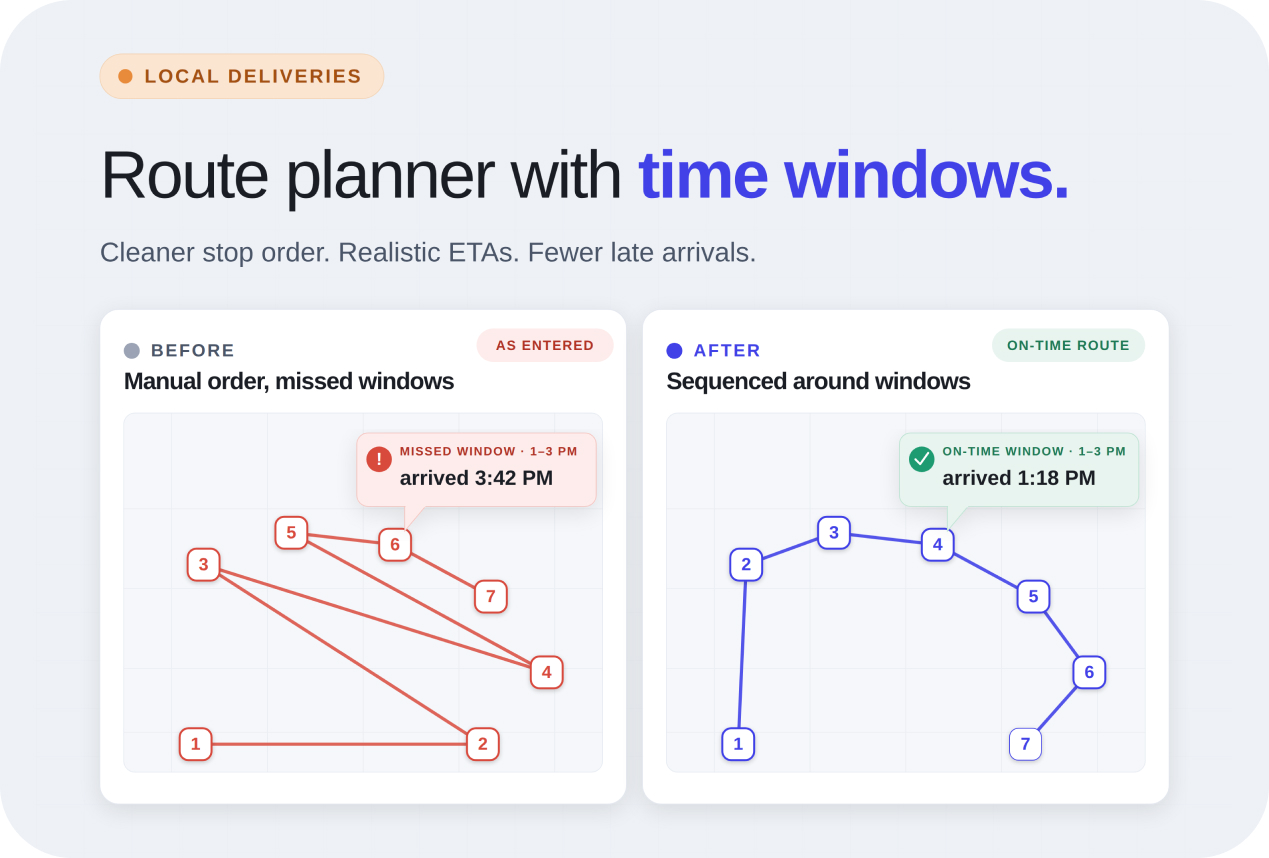
Route Planner App With Time Windows for Local Deliveries
Late arrivals chip away at repeat business fast. Optiway helps local delivery businesses and same-day delivery drivers plan cleaner routes around time windows with less daily friction.
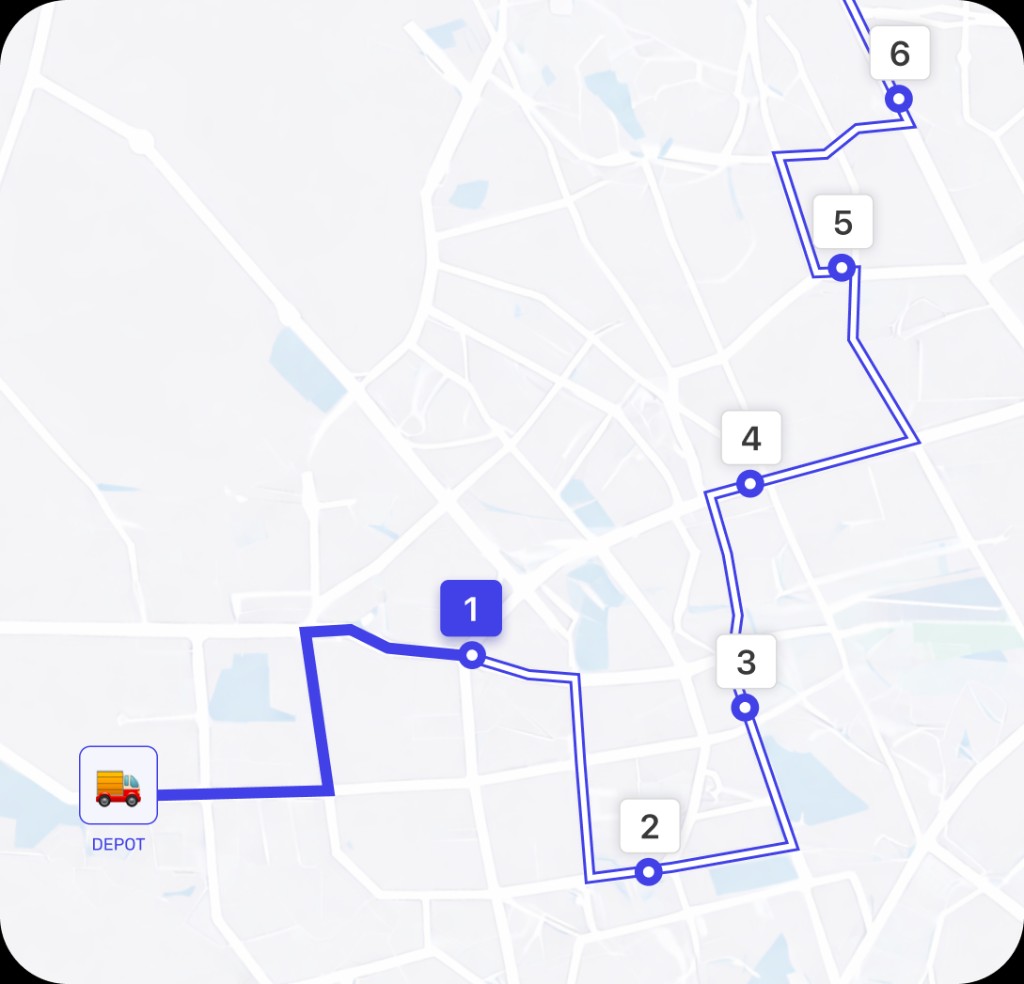
Why Google Maps Falls Short for Truck Routes
Where a navigation app stops being enough for commercial multi-stop routing.
Plan, assign and track every driver — live, from one dashboard.