What Route Planning Really Means in Logistics with Optiway Insights
Learn what route planning means in logistics with practical steps, tools, and pitfalls included - understand how Optiway helps optimize delivery routes effectively

Route Planning
Your stops already live in a spreadsheet. So why does planning the day still start with typing them into a phone, one address at a time?
For most delivery teams, delivery scheduling is a copy-and-paste ritual: paste an address, wait for the map, drag a pin, repeat forty times. Picture a courier with 60 drops staring at a maps app at 6 a.m. — that half hour of manual route planning is the first bottleneck of every shift, and it’s where typos turn into missed stops. There’s a faster way to handle scheduling that never touches a group chat.
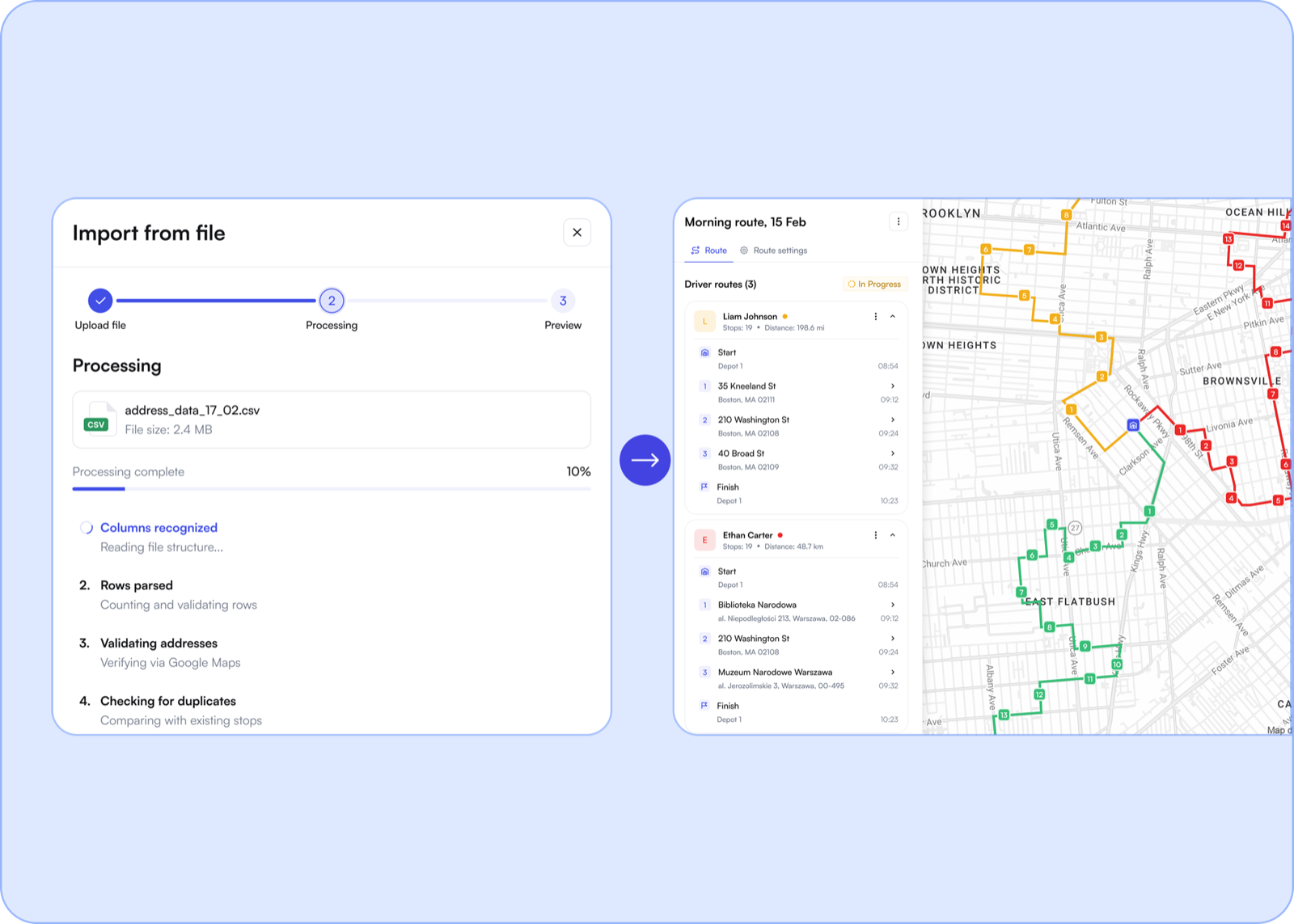
Optiway starts from where your data already is. Drop in a stop list from CSV or Excel and it becomes a scheduled, optimized route in seconds. Here’s exactly how that works — from CSV to route planner to a driver-ready plan with real time windows.
Every route begins with your existing data, so Optiway reads the file you already keep — no template gymnastics, no developer project.
Messy data is fine. Optiway reads whatever headers you already use and checks each address against live map data as it imports — an ambiguous town name or an address it can’t place gets flagged for a quick fix, not turned into a failed drop and a callback. From there it sequences around the constraints you actually set, time windows and stop priorities, so the order that comes out is one a driver can realistically run.
The whole point of csv route import is simple: the addresses you’ve already collected shouldn’t be typed twice — here’s the step-by-step version of turning a raw list into a built route.
A list of addresses isn’t a route — the order is everything. Optiway is the Excel route planner that reorders your stops into the shortest, most efficient sequence, not the order you happened to type them in.
The math is unglamorous but real: shave a few minutes between stops across a 40-drop run and you’ve handed the driver back the better part of an hour — repeated every shift, that’s the difference between squeezing in another route and paying overtime.
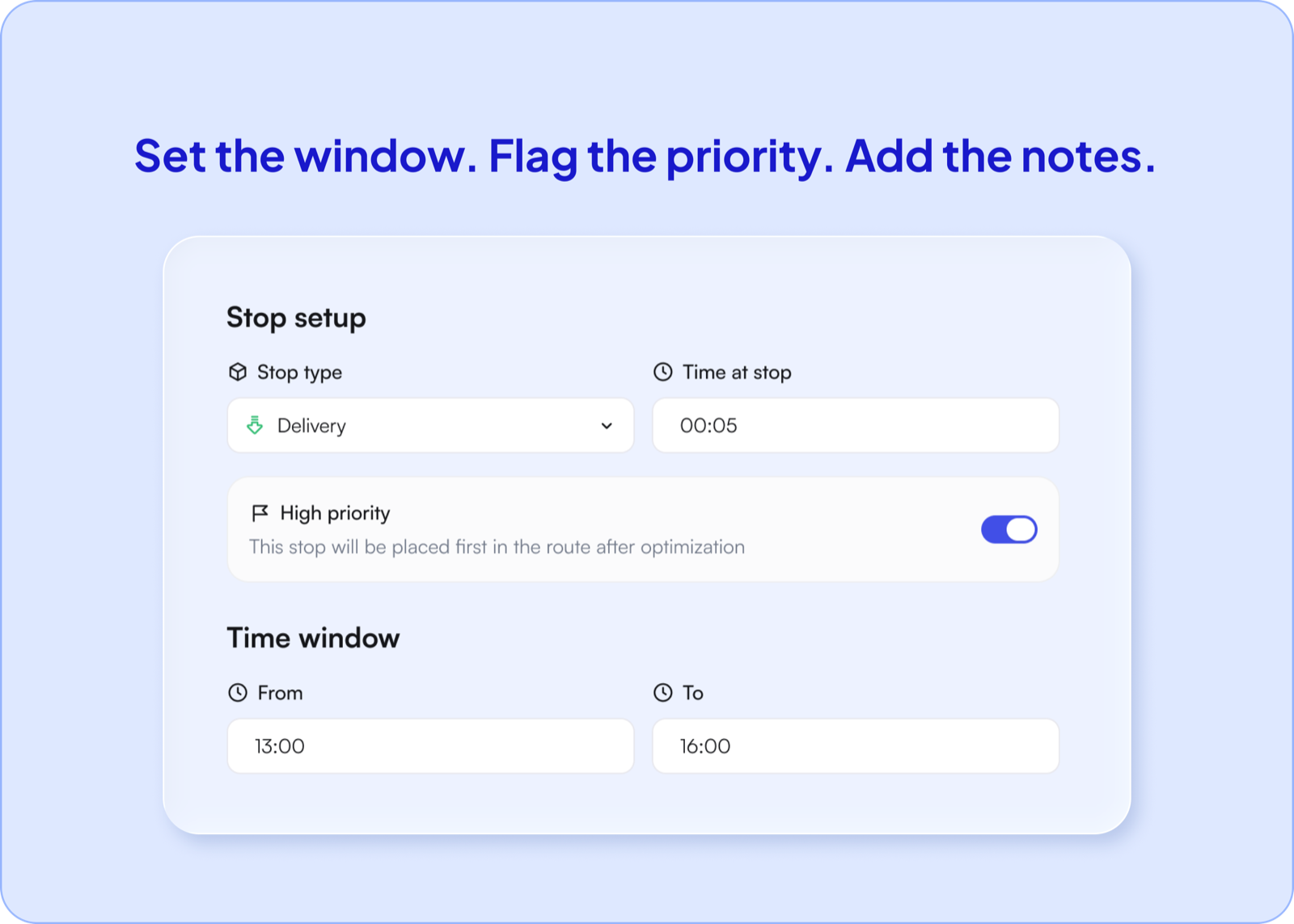
Fast isn’t enough if you miss the window. Optiway lets you schedule routes around the promises you’ve already made to customers, so timing shapes the plan instead of fighting it.
Set your delivery time windows once, and the schedule and the route stay in sync for the rest of the day.
Most teams don’t start with nothing — they start with Google Maps and a spreadsheet, and the ceiling shows up fast. Consumer maps cap you at around ten stops, won’t read a file, and never reorder anything, so you still sequence by hand. The spreadsheet holds the addresses but can’t optimize or schedule them. Route planning software closes both gaps at once: it takes the file you already keep, sequences every stop, and honors your time windows. You’re not adopting a new system so much as deleting the manual steps between your stop list and the road.
Put it together and Optiway is route planning software built for the way delivery actually works: import, optimize, schedule, and drive — all in one place. It’s a route manager for the whole day, not a maze of disconnected tools and screenshots.
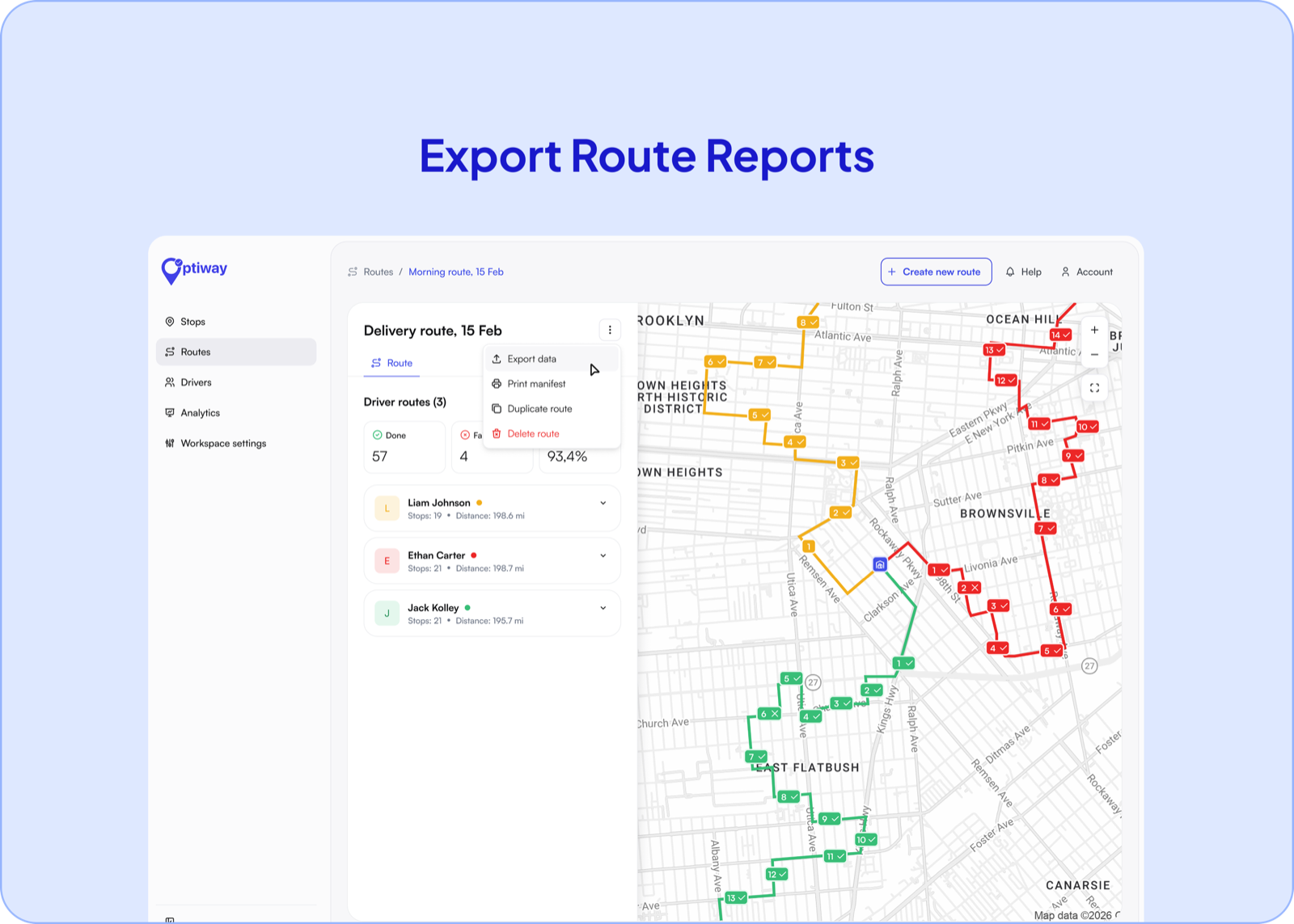
When the run wraps, export a PDF or Excel route report and activity log as proof of a completed day — handy for dispatchers, clients, and your own records. And as you grow from one driver to several, the same route optimization software scales with you across the full platform. Our pricing is easy to predict — you choose a plan by the stops you run each month rather than by headcount, with clearly stated limits if you go over, so scaling up is a deliberate step rather than a surprise bill.
Can Optiway import my existing spreadsheet?
Yes. Upload a CSV or Excel file, or paste a column of addresses. Optiway maps your columns — address, notes, time window, priority — so there’s no rebuilding your data to fit a fixed template.
How many stops can one route handle?
Up to 200 stops per route, sequenced in a single pass. A big day imports in the same few seconds as a small one.
What if the plan changes after the driver has left?
Add, remove, or reprioritize a stop and Optiway re-optimizes on the fly. The updated sequence and per-stop ETAs push straight to the driver app.
Do I pay per stop?
Pricing is by the stops you plan each month, not per delivery and not per driver. Each plan includes a monthly stop allowance, so you won’t see a separate charge for every individual stop. Early Access is free and includes 300 stops a month; Team raises that to 2,000 for $99 a month.
Import your first stop list and watch it become an optimized, scheduled route in under five minutes. Early Access is free with 300 stops a month — see the time savings before you commit.
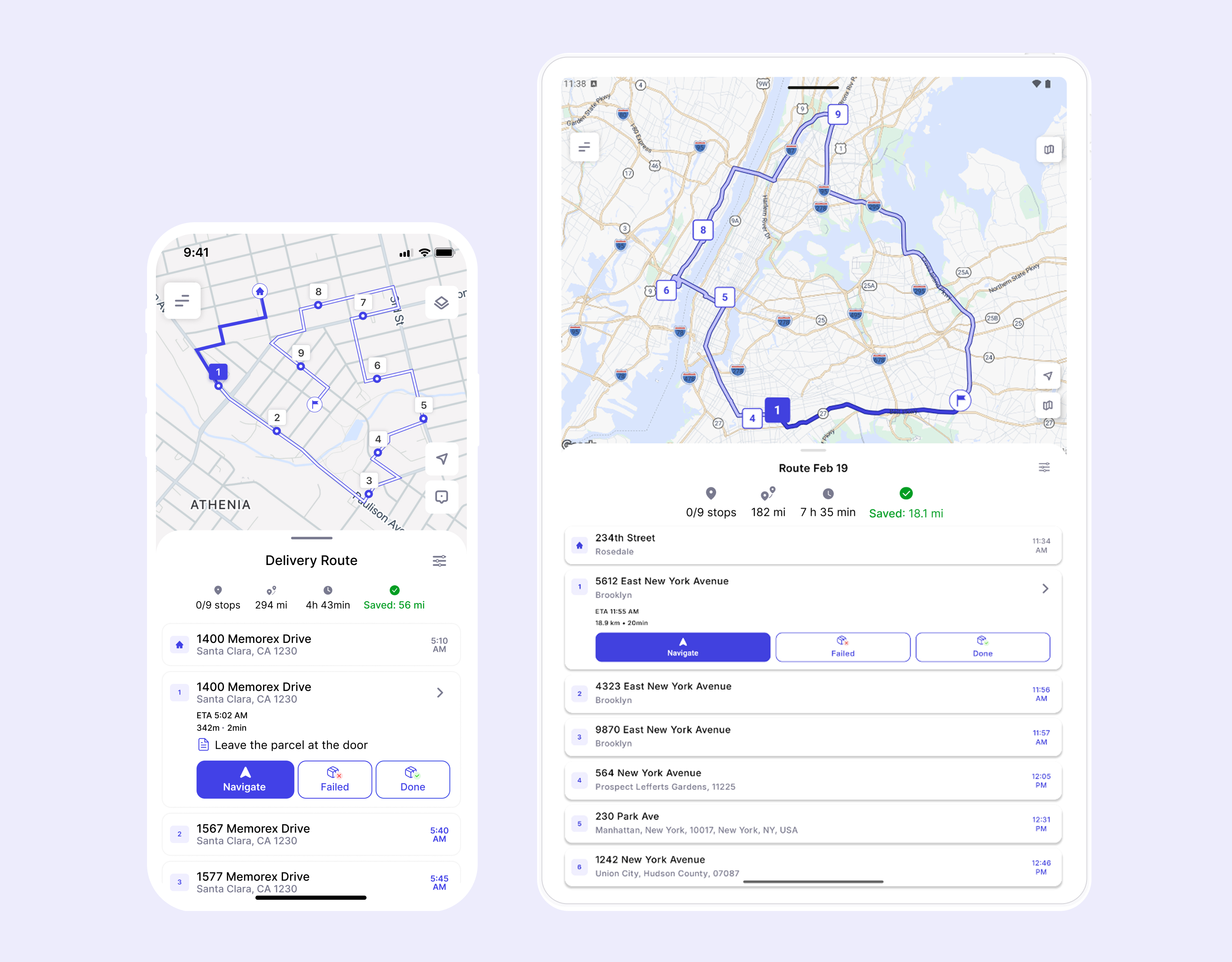
What Route Planning Really Means in Logistics with Optiway Insights
Learn what route planning means in logistics with practical steps, tools, and pitfalls included - understand how Optiway helps optimize delivery routes effectively
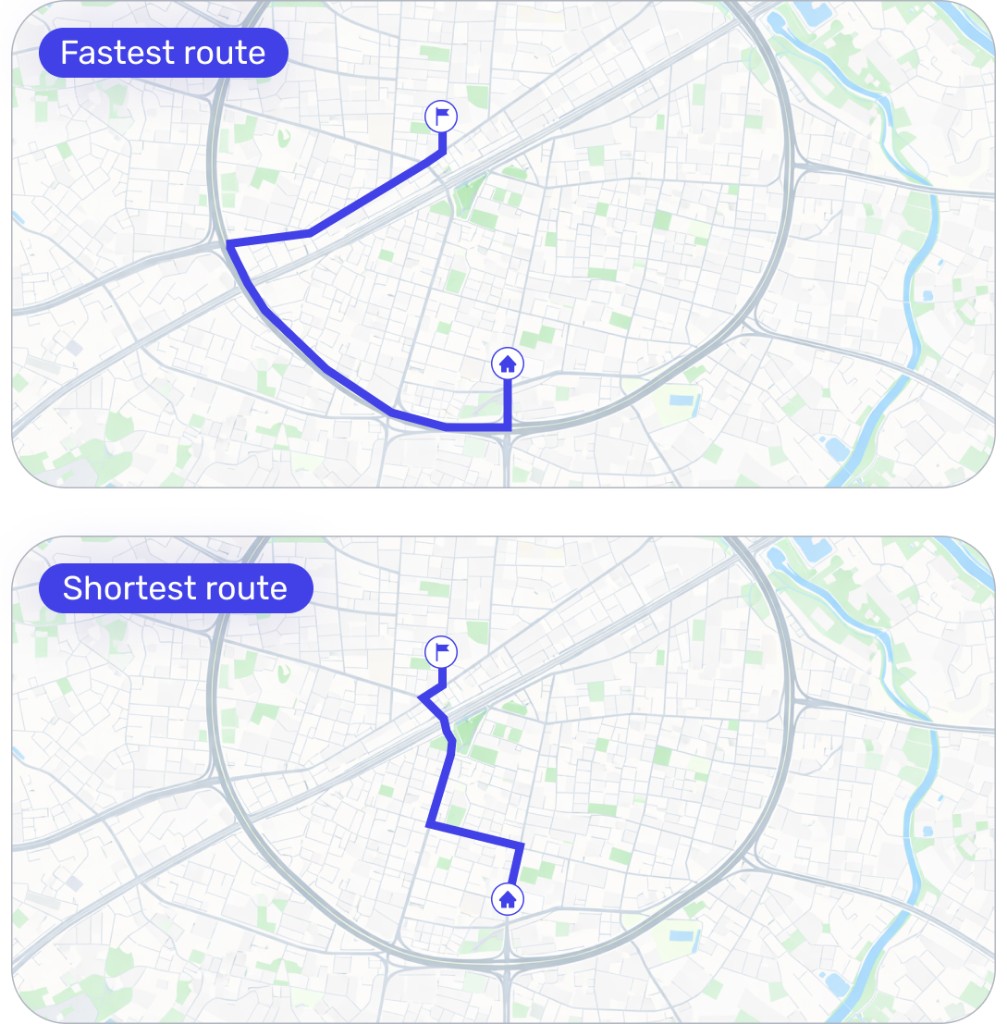
Fastest Route vs. Shortest Route in Optiway: What to Choose and Why
Navigate the real-world tug‑of‑war between fastest and shortest route logic in logistics with Optiway - learn how to apply each strategy strategically.
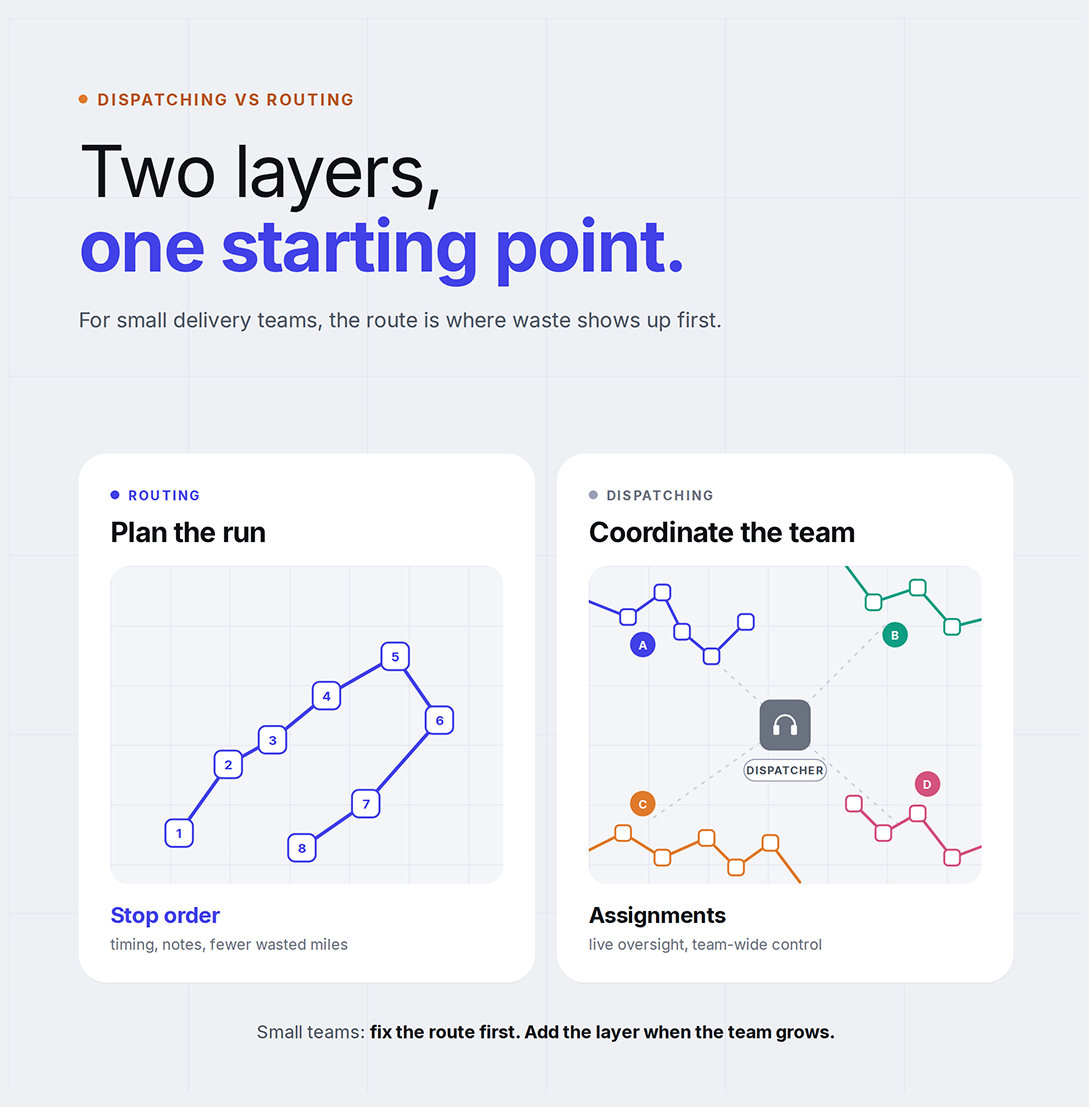
Dispatching vs Routing: Why Small Delivery Businesses Start With Route Optimization
Optiway explains why small delivery businesses usually get more value from better route optimization before adding heavier dispatch workflows.
Plan, assign and track every driver — live, from one dashboard.